
7 Best AI Image Upscalers for Print and Web in 2026
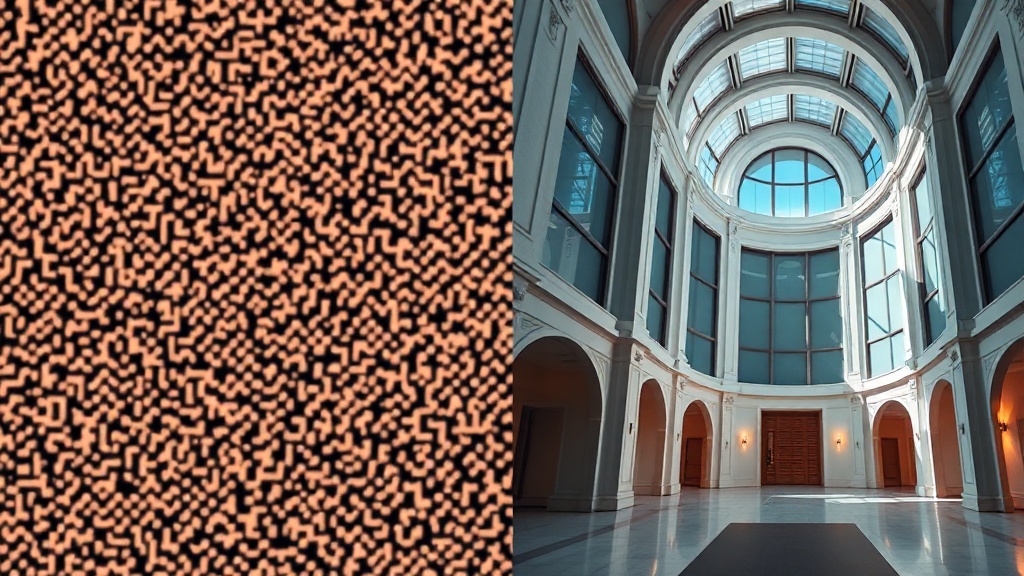
The best AI image upscalers for print and web in 2026 have evolved from simple pixel-doubling algorithms into sophisticated generative models capable of reconstructing missing details with uncanny accuracy. Whether you are a professional photographer preparing a gallery-sized print or a web designer looking to optimize assets without losing clarity, choosing the right tool is the difference between a professional result and a blurry, artifact-heavy mess.
In this guide, we evaluate the top-tier solutions that leverage neural networks to intelligently interpolate pixels. We move beyond basic sharpening to examine how these tools handle complex textures, human skin, and intricate typography, ensuring your final output looks natural rather than processed.
Understanding the Technology Behind AI Upscaling
Modern AI upscaling is fundamentally different from the traditional "bicubic" or "nearest neighbor" resizing methods used in legacy software. Those old methods simply stretched the existing pixels, which inevitably caused blurriness or blocky artifacts. In contrast, deep learning models analyze the input image and predict what the high-resolution version should look like based on training data covering millions of images.
Generative Reconstruction vs. Interpolation
Most leading tools today use a hybrid approach. They use standard interpolation to establish the base structure and then apply a "generative pass" to fill in the gaps. This is why you might notice that some AI upscalers add a slight texture or "grain" to a photo; the AI is essentially "painting" in details like pores on skin or blades of grass that were technically invisible in the original low-resolution file.
The Role of Training Data
The effectiveness of an upscaler is largely dictated by its training set. Tools trained on photorealistic photography will perform significantly better on portraits and landscapes than tools trained primarily on anime or vector illustrations. When selecting an upscaler, always consider the primary subject matter of your workflow, as a mismatch between the model and your content can lead to "waxy" skin or distorted edges.
Top 7 AI Image Upscalers for 2026
To help you navigate the landscape, we have categorized the leading tools based on their specific strengths. While the market is flooded with options, the following seven have proven themselves through consistency, speed, and output quality.
| Tool Name | Best For | Primary Strength |
|---|---|---|
| Topaz Photo AI | Professional Photographers | Comprehensive restoration suite |
| Gigapixel 8 | Large Format Prints | Unmatched sharpness at 6x+ scale |
| Magnific AI | Creative & Artistic | Generative hallucination/detail |
| Upscayl | Desktop/Privacy | Free, open-source, local processing |
| VanceAI | Quick Web Assets | User-friendly cloud automation |
| Remini Pro | Portraits & Faces | Facial feature reconstruction |
| Adobe Super Resolution | Lightroom/Photoshop Users | Seamless RAW workflow integration |
Why Topaz Remains the Industry Standard
Topaz Photo AI continues to be the gold standard for photographers. It doesn't just upscale; it performs integrated noise reduction, sharpening, and face recovery simultaneously. This saves you from the "step-ladder" workflow where you have to run an image through three different plugins just to get a clean result.
Optimizing Files for High-Quality Prints
When preparing images for print, resolution is only half the battle. You need to ensure your AI-upscaled file maintains color integrity and appropriate DPI settings. Printers typically require 300 DPI to avoid pixelation, which is a metric your AI tool should be set to output.
The Importance of Source Quality
Even the best AI cannot perform miracles on a thumbnail-sized image. For large format printing, aim for a source image that has at least 1,000 pixels on its shortest side. If you feed an AI a 200-pixel image, the "hallucinated" details will likely look synthetic when blown up to a 24-inch print. Always try to obtain the highest quality source possible before applying AI enhancement.
Managing Color Profiles
Many web-based upscalers convert images to sRGB by default. This is fine for web use, but for professional print, you must ensure your final file is saved in the correct color space—usually Adobe RGB or CMYK, depending on your printer's requirements. If you upscale in the cloud, always double-check that the tool hasn't stripped your embedded color profile.
Upscaling for Web Performance and Clarity
Web optimization is about balancing visual fidelity with file size. Using an AI upscaler for the web isn't just about making things bigger; it is about creating images that look sharp on high-density "Retina" displays without causing massive page load times.
Balancing Resolution and File Weight
One expert tip is to upscale your images to exactly the dimensions required by the web design, then apply a modern compression algorithm like WebP or AVIF. By using an AI upscaler to sharpen the image before compression, you can often get away with a higher compression ratio while the image still appears "crisp" to the human eye. This is a secret weapon for fast-loading, high-quality portfolios.
Handling Text and Logos
Avoid using general-purpose "photo" upscalers on images containing text or sharp vector logos. These models often try to "smooth" the edges of letters, which results in blurry, illegible typography. Instead, use tools that offer a dedicated "Illustration" or "Graphics" mode, which preserves hard edges and prevents the AI from adding unwanted noise to solid color blocks.
The Workflow: Step-by-Step for Best Results
To get the most out of your AI tools, follow a structured process rather than just hitting "upscale" and hoping for the best.
- Clean the source: Use a light denoiser or a cleanup tool to remove compression artifacts before upscaling.
- Choose the Model: Select the specific model for your subject (e.g., "Portrait," "Landscape," or "Low-Res").
- Upscale in Increments: If you need a massive increase, try upscaling by 2x, saving, and then upscaling by another 2x. This often yields better results than a single 4x jump.
- Final Polish: Bring the upscaled image into a photo editor to perform final color grading or contrast adjustments, as AI upscaling can sometimes slightly flatten the dynamic range.
Addressing Common Pitfalls and "AI Artifacts"
The most common mistake users make is over-processing. If you crank the "sharpening" or "detail" sliders to the maximum in your upscaling software, you will inevitably end up with "halos" around high-contrast edges or a plastic-looking texture on skin.
Recognizing Over-Processing
If your image looks like a watercolor painting or has strange, repetitive patterns in the background, you have likely pushed the generative model too far. The best results occur when the AI is used to "suggest" detail rather than "invent" it. Always keep the strength settings in the middle range and perform manual sharpening if necessary.
When to Use Manual Editing
Sometimes, the AI will get something wrong—a stray pixel or a weirdly shaped eyelash. Never rely on the AI output as your final product without a quick "sanity check." Spending two minutes with a healing brush in Photoshop to fix an AI-induced error will make your final output look exponentially more professional.
Final Thoughts
The landscape of AI image upscaling in 2026 is defined by tools that prioritize naturalism over raw power. The best results are achieved not by choosing the most expensive software, but by understanding the limitations of your source material and tailoring your tool selection to the specific needs of your project. Whether you are prepping a gallery print or optimizing a hero image for a high-traffic website, remember that AI is a tool to augment your vision, not a substitute for the human eye. Test your workflow with a few sample images today to find the balance between speed and quality that fits your creative process.
Frequently Asked Questions
Can AI upscalers really make a tiny image suitable for a large poster print?
Yes, but with limits. While AI can hallucinate textures and sharpen edges, it cannot create detail that wasn't implied in the original. For massive prints, you still need a source image with decent base resolution to avoid a 'painterly' or artificial look.
Is there a difference between upscaling for web vs. print?
Absolutely. Web upscaling prioritizes file size and color accuracy for screens, while print upscaling requires higher DPI (dots per inch) and specific color profile handling (CMYK) to ensure the physical output looks sharp and professional.
Do I need a powerful GPU to run these AI upscalers?
If you use cloud-based SaaS tools, your local hardware doesn't matter. If you use local, open-source models like Stable Diffusion-based upscalers, you will need a dedicated graphics card with significant VRAM to process high-resolution images efficiently.

Nethmina is the founder of AI Tools Wire and an AI software developer who builds automation tools and tests new AI products hands-on every week.
📬 Get new articles by email
Subscribe for the latest AI tools, guides, and tips. No spam — unsubscribe anytime.
Related Articles
7 Best AI Story Generators for Kids' Books to Create Magic in 2026
Unlock your creativity with the best AI story generators for kids' books. Discover tools to craft enchanting tales, stunning illustrations, and lasting memories.
7 Best AI Subject Line Generators to Boost Email Open Rates (2026)
Struggling with low open rates? Discover the best AI subject line generators to craft high-converting email hooks that grab attention and drive clicks today.
7 Best AI Chatbot Builders for Websites and Messaging Apps 2026
Discover the top AI chatbot builders for websites and messaging apps to automate support and boost conversions. Compare features, pros, and expert use cases.