
Free AI Video Editing Software with No Watermarks in 2026
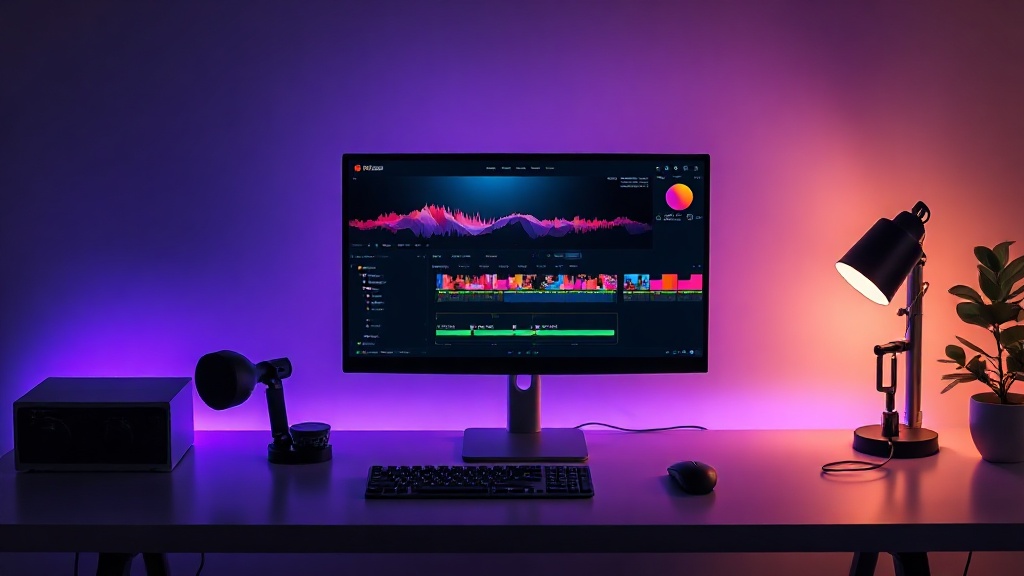
Finding the best free AI video editing software with no watermarks is a major priority for creators who want professional results without monthly subscription fees. In 2026, the landscape of digital creation has shifted dramatically, offering powerful machine learning tools that run directly in your browser or leverage your local hardware. This guide explores the absolute best options available today, helping you create clean, unbranded content without spending a dime.
The days of being forced to accept an ugly, semi-transparent logo in the corner of your hard work are finally coming to an end. As artificial intelligence becomes more integrated into standard creative pipelines, software developers are finding new ways to monetize their platforms without resorting to restrictive watermarking. Let's look at how this technology has evolved and which tools you should download today.
The Evolution of Free AI Video Editing (No Watermarks)
For years, the "free trial" of almost every video editor came with a massive catch: a giant watermark splashed across the center of your screen. This was designed to force casual creators into upgrading to premium tiers. However, the rise of open-source artificial intelligence models and highly efficient local processing has completely disrupted this old business model. Today, developers use unwatermarked free tiers as a powerful lead-generation tool to build massive user bases.
Another major driver of this shift is the transition to hybrid computing. By leveraging your computer's local graphics processor (GPU) through modern web standards like WebGPU, or via optimized desktop applications, software companies no longer have to pay massive cloud rendering bills for every edit you make. This reduction in operational costs allows them to offer incredibly robust, clean, and watermark-free exporting capabilities on their free tiers.
Furthermore, the sheer level of competition in the creator economy means that tools with restrictive watermarks are quickly abandoned. Creators now expect seamless, professional-grade outputs from the start. To survive, modern software suites monetize through premium asset libraries, advanced cloud storage, or hyper-advanced generative AI features, leaving the core editing and basic AI utilities completely free and unbranded.
Top Free AI Video Editors with No Watermarks in 2026
When choosing a video editor, you need to balance ease of use with the depth of the available AI features. The following tools represent the gold standard of watermark-free editing, ranging from beginner-friendly browser apps to industry-grade desktop suites.
DaVinci Resolve (Free Version)
DaVinci Resolve remains the undisputed king of professional-grade desktop video editing. While it offers a paid Studio version, the free tier is incredibly generous, entirely watermark-free, and supports exports up to Ultra HD 4K at 60 frames per second.
DaVinci’s proprietary Neural Engine powers several cutting-edge AI features even in the free version. These include basic voice isolation, smart audio classification, and highly accurate scene cut detection. Because it runs locally on your machine, you do not have to worry about cloud render queues or monthly credit limits, making it the perfect choice for creators with dedicated hardware.
CapCut Desktop
CapCut has taken the social media creation world by storm, and its desktop version is a powerhouse for fast-paced video editing. By signing up for a free account, you can export your videos at up to 4K resolution with absolutely no watermark, provided you avoid using assets or templates marked with the "Pro" tag.
The software is packed with intuitive AI tools, including automated auto-captions that translate speech to text in seconds, AI-driven background removal, and smart image enhancement. It is highly optimized for both Windows and macOS, making it incredibly responsive even on mid-range laptops.
Microsoft Clipchamp
As the default video editor built directly into Windows 11 (and accessible via web browsers on macOS), Microsoft Clipchamp has quietly become one of the most reliable free editors on the market. It offers completely free, watermark-free exports at up to 1080p resolution.
Clipchamp features an array of AI-assisted tools, such as an "Auto-compose" feature that uses machine learning to assemble your raw footage into a cohesive story based on your chosen theme. It also boasts one of the best text-to-speech generators available, powered by Azure's natural voice models, alongside an AI speaker coach to help you refine your voiceovers.
Comparative Analysis of No-Watermark AI Editors
To help you decide which tool fits your specific workflow, here is a direct comparison of the top free platforms available right now.
| Software | Primary AI Capability | Max Free Resolution | Platform | Best Suited For |
|---|---|---|---|---|
| DaVinci Resolve | Audio Isolation & Scene Detection | 4K UHD | Windows, macOS, Linux | Advanced Creators & Colorists |
| CapCut Desktop | Auto-Captions & Smart Cutouts | 4K UHD | Windows, macOS | TikTok, Reels, & Shorts Creators |
| Microsoft Clipchamp | Auto-Compose & Text-to-Speech | 1080p HD | Windows, Web Browser | Quick Edits & Presentation Videos |
| Canva (Free Tier) | AI Transitions & Audio Sync | 1080p HD | Web Browser, Mobile | Social Media Graphics & Short Clips |
Key AI Features to Look for in Free Video Software
Not all artificial intelligence tools are created equal. When evaluating a free editor, you should look for specific machine learning features that actively save you time and elevate the quality of your production.
Smart Cut and Scene Detection
Manually scrubbing through hours of raw footage to find the best takes is incredibly tedious. AI-driven scene detection analyzes your files and automatically chops them into individual clips based on visual changes or camera cuts. This allows you to organize your timeline in seconds rather than hours.
Automated Subtitles and Transcription
In a world where a massive percentage of social media video is consumed on mute, accurate captions are non-negotiable. Modern speech-to-text engines can transcribe your dialogue with near-perfect accuracy, automatically sync the text to your audio, and allow you to style the subtitles dynamically to match your brand.
AI Audio Enhancement and Voice Isolation
Poor audio quality is the fastest way to ruin an otherwise great video. Free AI tools now feature advanced noise-reduction algorithms that can strip away background hiss, air conditioning hums, and wind noise, leaving you with crisp, studio-quality vocals even if you recorded on a cheap microphone.
Step-by-Step Guide: How to Export Without Watermarks
Even when using software advertised as "free," it is easy to accidentally trigger a watermark during the export process if you aren't careful. Follow this simple checklist to ensure your final video remains completely clean.
[1. Select Your Platform] ---> [2. Avoid Premium/Pro Assets] ---> [3. Use AI Tools Strategically] ---> [4. Check Export Settings]
- Select the Right Tool for Your Hardware: If you have a powerful computer with a dedicated graphics card, opt for DaVinci Resolve. If you are working on a school or work Chromebook, use a browser-based option like Clipchamp.
- Avoid Premium Assets: Many free editors mix premium stock music, special transitions, and advanced AI effects in with their free offerings. These are usually marked with a small crown, star, or "Pro" icon. If you use even one of these elements, the software will place a watermark on your video during export unless you pay. Stick strictly to the free asset library.
- Apply AI Tools Strategically: Some cloud-based AI features (like complex generative video fill) may require processing credits. Use standard local AI features (like auto-captioning or basic audio cleaning) to keep your project entirely within the free tier limits.
- Double-Check Export Settings: When you are ready to export, look closely at the render window. Some tools (like CapCut) have a checkbox that says "Export with watermark" if you aren't signed in. Make sure you are logged into a free account to unlock clean, watermark-free exports.
The Hidden Trade-offs of Free AI Video Tools
While you don't have to pay with your wallet, it is important to understand that "free" software often comes with alternative trade-offs. Knowing these limitations beforehand will prevent frustration mid-project.
- Data Privacy: Cloud-based AI editors process your video files on their servers. Always read the privacy policy to ensure the platform is not using your private footage or voice recordings to train their proprietary machine learning models without your consent.
- System Resource Demands: Local AI processing (especially features like DaVinci's magic masking or local transcription) requires a modern processor and plenty of RAM. If your computer lacks a dedicated GPU, you may experience sluggish performance or system crashes.
- Aggressive Upselling: Free platforms are designed to convert you into a paying customer. Expect frequent pop-ups, limited access to new beta features, and regular reminders of how much faster or better your experience would be if you upgraded to their premium tier.
Final Thoughts
The democratization of creative tools has made it easier than ever to produce stunning, professional content without financial barriers. By utilizing powerful platforms like DaVinci Resolve for heavy desktop editing, or CapCut and Clipchamp for rapid social media creation, you can bypass watermarks entirely while harnessing the cutting-edge power of artificial intelligence.
The best way to find your ideal workflow is to experiment. Try combining these tools—for example, editing your main sequence in DaVinci Resolve, and then importing it into CapCut for quick, AI-generated captions. Find the combination that feels natural, fits your hardware, and keeps your creative process moving forward smoothly.
Frequently Asked Questions
How do free AI video editors make money if they don't use watermarks?
Many platforms use a freemium model where basic AI features and standard exports are free without watermarks, while advanced tools like 4K exporting, premium stock assets, or high-compute AI generation require a paid subscription. Others may limit your monthly export minutes rather than branding your video.
Can I export 4K videos using free AI video editing software with no watermarks?
While some advanced offline tools like DaVinci Resolve allow high-resolution exports on their free tier, most web-based free AI video editors limit free, unwatermarked exports to 720p or 1080p. To export in true 4K without a watermark, you typically need to upgrade to a premium plan or use local desktop software.
Are web-based AI video editors safer than desktop applications?
Web-based editors are highly secure because they run in your browser sandbox and don't require system-level installations. However, desktop applications like DaVinci Resolve or CapCut Desktop offer much faster processing speeds for heavy AI workloads since they leverage your local GPU rather than cloud queues.

Nethmina is the founder of AI Tools Wire and an AI software developer who builds automation tools and tests new AI products hands-on every week.
📬 Get new articles by email
Subscribe for the latest AI tools, guides, and tips. No spam — unsubscribe anytime.
Related Articles

7 Best Free AI Children’s Story Creators for Custom Tales (2026)
Discover the best free AI children’s story creators with illustrations to build custom books. Learn how to generate unique tales for kids in minutes.

7 Best Free AI Email Subject Writers to Boost Your Open Rates
Discover the best free AI email subject writers to increase your open rates. Learn how to craft high-converting subject lines using these expert-tested tools.
7 Best Free AI Chatbot Creators to Automate Basic Queries
Discover the best free AI chatbot creators that handle basic queries effortlessly. Streamline your customer support and save time with these top-rated tools.