
How to Restore Old Photos with AI in 2026: 7 Easy Methods
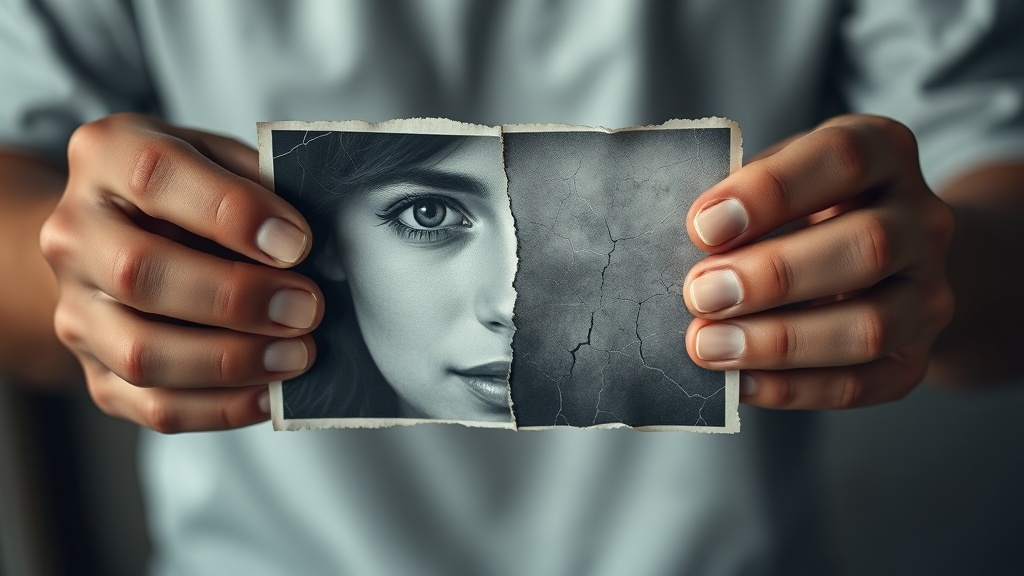
Learning how to restore old photos with AI in 2026 has become a streamlined process, allowing anyone to turn faded, damaged, or blurry heirlooms into high-definition digital memories. With the rapid evolution of generative adversarial networks (GANs) and diffusion models, modern tools can now intelligently fill in missing pixels, remove deep scratches, and colorize monochrome images with startling accuracy. Whether you are a casual hobbyist trying to save a family album or a professional archivist, the barrier to entry has never been lower.
The Evolution of Restoration Technology
In past years, photo restoration required hours of meticulous work in professional software like Photoshop, utilizing clone stamps and healing brushes. Today, the process is largely automated. AI models trained on millions of images now understand the structure of human faces, skin textures, and common degradation patterns found in physical prints. By leveraging these models, you can achieve in seconds what used to take experts an entire afternoon.
Why Quality Scanning Matters
The best AI restoration in the world cannot compensate for a poor-quality digital capture. Before you upload any image, ensure your source file is clean. If you are digitizing physical photos, use a high-resolution flatbed scanner rather than a smartphone camera whenever possible. If you must use a phone, ensure the lighting is perfectly even to avoid glare, and use a dedicated scanning app that automatically corrects for perspective distortion.
Essential AI Restoration Tools for 2026
Choosing the right software depends on your technical comfort level and your specific needs. The market has matured significantly, with tools now categorized into user-friendly mobile apps, powerful web-based platforms, and robust desktop suites. Most of these tools offer a free tier, allowing you to test the results before committing to a subscription plan.
Web-Based Platforms vs. Dedicated Software
Web-based AI platforms are currently the most popular choice for casual users. These services process your images on their servers, meaning your device’s hardware is less relevant. For those dealing with thousands of photos, however, local desktop applications are often more efficient. They allow for batch processing and keep your data entirely local, which is a major benefit for those concerned about privacy or uploading sensitive family imagery to the cloud.
| Feature | Web-Based AI Tools | Desktop AI Suites |
|---|---|---|
| Ease of Use | Very High | Moderate |
| Processing Speed | Dependent on Internet | Dependent on GPU |
| Privacy | Upload Required | Local Processing |
| Batch Capability | Limited | Extensive |
Step-by-Step Guide to Restoring Your Images
Restoration is not a "one-click" magic button; it is a workflow. To get the best results, follow this structured process to ensure you aren't just applying a filter, but actually preserving the essence of the original photograph.
- Clean the physical original: If the photo is a physical print, use a soft, dry cloth to remove dust. Do not use water or chemical cleaners.
- Scan at high DPI: Aim for at least 600 DPI for standard photos. If the photo is small, go up to 1200 DPI to capture fine details.
- Run the AI repair: Use a tool specialized in "scratch removal" or "face enhancement" first.
- Colorize (Optional): Apply colorization only after the structural repairs (scratches and tears) are completed.
- Final sharpening: Use an AI upscaler to bring out the final crispness of the restored image.
Handling Specific Damage Types
Not all damage is created equal. Scratches are usually linear and easy for AI to detect and remove. Water damage, however, often destroys the base layer of the emulsion, meaning the AI has to "hallucinate" the missing information. When dealing with severe water damage, look for tools that allow for "masking," where you can manually tell the AI which parts of the image it needs to prioritize for reconstruction.
Advanced Techniques for Professional Results
Once you have mastered the basics, you can start using "layering" techniques to improve your output. Many experts now use two or more AI tools in sequence. For example, you might use a tool that specializes in removing heavy grain and noise, then pass that result into a second tool that specializes specifically in facial reconstruction.
The Power of Face Enhancement
The most impressive part of 2026-era restoration is face enhancement. These models are specifically trained on facial geometry. If you have a group photo where one person is blurry but everyone else is clear, these tools can re-render just the affected face while keeping the background natural. Always check your settings to ensure the "strength" of the enhancement is set to a moderate level; too much processing can make a face look like a plastic doll or an unrecognizable stranger.
Managing Colorization Accuracy
AI colorization has moved beyond simple sepia-to-color mapping. Modern systems analyze the clothing, environment, and skin tones to make educated guesses about the original colors. However, AI can still get things wrong, such as the color of a specific uniform or a flower. If you have historical knowledge about the subject, look for tools that allow you to "guide" the colorization by selecting a specific color palette for certain regions of the image.
Common Pitfalls and How to Avoid Them
The biggest mistake beginners make is over-processing. It is tempting to turn the sliders all the way up to get the "cleanest" look, but this often results in the loss of the original character of the photograph. The goal should be restoration, not replacement.
The "Uncanny Valley" Effect
When AI over-sharpens a face, it can create an "uncanny" look where the eyes or mouth appear slightly wrong. If you notice this, reduce the output intensity. It is better to have a slightly softer, more natural-looking face than a hyper-realistic one that looks like a high-end 3D render. Always compare the restored version side-by-side with the original scan to ensure the person in the photo still looks like themselves.
Preserving Metadata
When you export your restored photos, ensure you are saving them in a lossless format like TIFF or high-quality PNG. Converting to highly compressed JPEGs can introduce "artifacts" that ruin all the hard work the AI just did. If you are building a digital archive, remember to rename your files clearly and include the original date or context in the file metadata if your software allows it.
The Future of AI Photo Archiving
Looking toward the latter half of the decade, we are seeing the rise of "temporal consistency" in AI. This means that if you have a series of photos of the same person taken over several years, the AI will eventually be able to "learn" that person's specific features. This will allow for much more accurate restoration across an entire family collection, ensuring that a person's appearance remains consistent from their childhood photos through their later years.
Privacy and Ethics
As you experiment with these tools, always consider the privacy implications. When uploading family photos to cloud-based services, check their terms of service regarding data usage. Reputable services usually delete your images shortly after processing, but it is always best practice to review the company’s privacy policy. If you are dealing with sensitive historical documents or private family records, prioritize offline, local-first software.
Final Thoughts
Restoring old photos with AI is a rewarding bridge between the past and the present, offering a way to honor history while utilizing the most advanced technology of 2026. By focusing on high-quality input, utilizing specialized tools for specific damage types, and keeping a watchful eye on natural-looking results, you can breathe new life into your family’s legacy. Start with one or two small projects to get a feel for your chosen software, and you will quickly find that the process becomes second nature. If you’re ready to begin, pick one of the top-rated AI tools mentioned in this guide and start scanning your favorite vintage prints today.
Frequently Asked Questions
Can AI truly restore a photo that is completely torn or missing parts?
AI excels at repairing cracks, scratches, and noise, but it relies on 'inpainting' to guess missing data. If a significant portion of a face or key detail is missing, the AI may struggle to reconstruct it accurately, often requiring manual touch-ups.
Is it better to use a cloud-based AI or offline desktop software?
Cloud-based tools are generally faster and leverage more powerful GPUs for complex restoration, while offline software offers better privacy and control over file formats. Choose cloud for convenience and offline for sensitive or high-volume projects.
Does AI restoration reduce the historical authenticity of an old photograph?
Yes, there is a risk of 'hallucination' where AI adds details that were not in the original image. For historical archiving, it is best to keep the original scan and save the restored version as a separate file.

Nethmina is the founder of AI Tools Wire and an AI software developer who builds automation tools and tests new AI products hands-on every week.
📬 Get new articles by email
Subscribe for the latest AI tools, guides, and tips. No spam — unsubscribe anytime.
Related Articles

How to Create Memes with AI in 2026: Viral Humor Made Easy
Learn how to create memes with AI in 2026 using the latest generative tools. Discover workflows for viral humor, high-quality visuals, and rapid social growth.

How to Write Children’s Stories with AI in 2026: A Pro Guide
Master how to write children’s stories with AI in 2026. Learn to craft engaging narratives, develop relatable characters, and use advanced tools effectively.

How to Generate Email Subject Lines with AI in 2026: 7 Expert Tips
Learn how to generate email subject lines with AI in 2026 to skyrocket your open rates. Discover expert prompt engineering, testing strategies, and best tools.